There are 2 methods of changing the outline style for zones:
Method 1: By changing the Zone layer style, which changes the style for all zone outlines, apart form those changed manually using method 2.
Method 2: By selecting the Zone and changing the LineStyle using the Style selector, this overrides the style set by the layer.
Instructions below for each.
Method 1
-
Click the 'Layers' button which is located on the HOME ribbon.

-
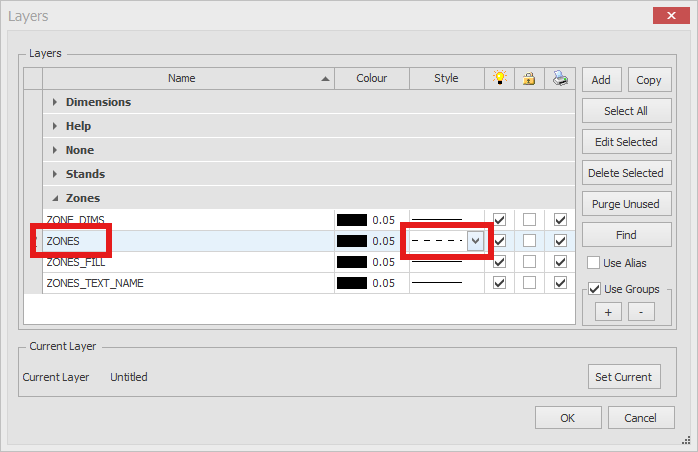
The Layer Manager dialog box will now appear as shown below.
Find the ZONES Layer and choose the required Style from the Style selector, you will notice that the default style is dashed.
Click OK. All of your Zones outlines will be the Style you selected, apart from any that have been changed manually.
Method 2
-
Select the Zone(s) that you want to change the outline Style for and then change the Style using the Style selector on the status bar at the bottom of EFD as shown below. You will find multiple line styles to choose from.
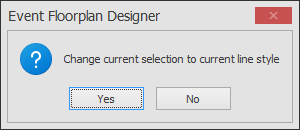
You will receive a message asking you to confirm the change, click Yes.
The outline of your Zone will now change to that Style.