DWG / DXF Export options
Use this function to configure DWG/DXF layer export settings and optionally enable Enhanced Export (which requires a paid add-on).
-
Click on the 'Manage Views' button which is located on the HOME menu ribbon.

-
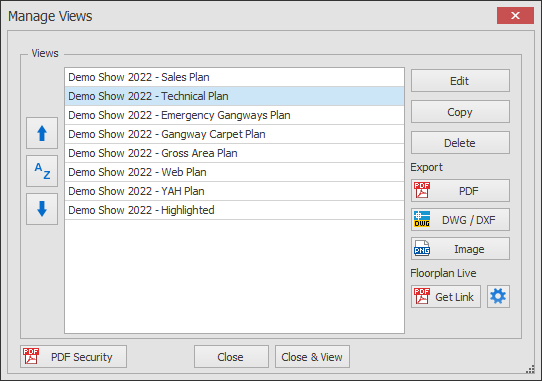
The Manage Views dialog box will now appear showing your list of views.
Select the View you want to edit and click the Edit button.
-
The Edit View dialog will now appear.
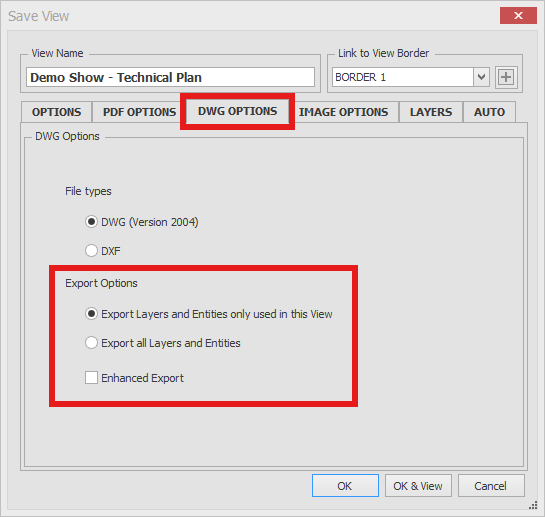
Click on the DWG OPTIONS tab to access the Export Options as shown below.
You have 2 options to choose from:
- Export Layers and Entities only used in this View - Select this option if you only want the layers that are visible in this View to be exported to a DWG/DXF e.g. If the Keep Clear Areas layer is not visible in this view, that layer and the entities on that layer are NOT exported to the DWG/DXF.
- Export all Layers and Entities - Select this option if you want ALL layers and Entities exported to a DWG/DXF regardless of Layer visibility set for this View. This means that the recipient of the DWG/DXF file will be able to access everything on your floorplan.
- Enhanced Export (requires paid add-on) – Select this option to export DWG/DXF files with intact polylines rather than individual line segments. Preserving polylines ensures seamless compatibility with AutoCAD, other floorplan systems, and data extraction tools that require continuous outlines. See here for the difference between lines and polylines.