Views - Upload to Floorplan Live
Use this function to make a View visible on Floorplan Live.
NOTE: Your drawing must be linked to Floorplan Live before you can use this. If it isn't linked yet, please contact us and we will link it for you.
-
Click on the 'Manage Views' button which is located on the HOME menu ribbon.

-
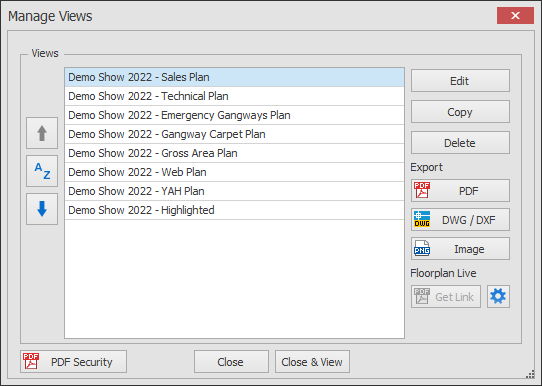
The Manage Views dialog box will now appear showing your list of views.
Select the View you want to edit and click the Edit button.
-
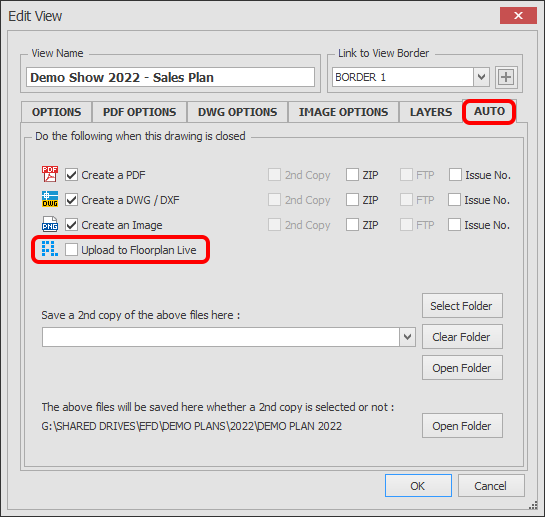
The Edit View dialog will now appear as shown below.
Click on the AUTO tab.
Tick 'Upload to Floorplan Live'.
-
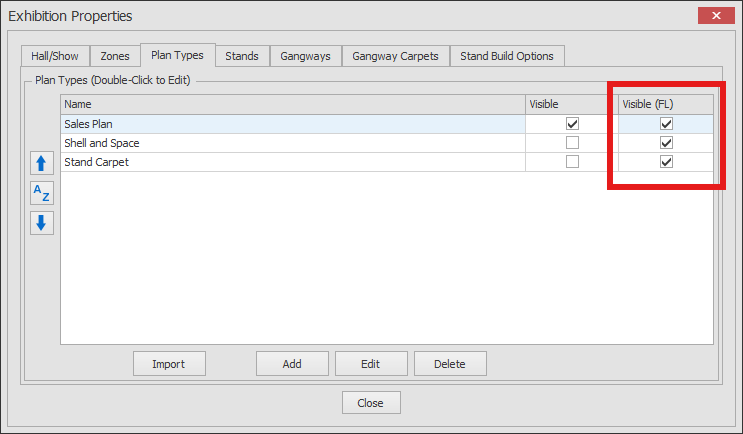
You now need to make sure that the Plan Type linked to this view is also enabled for Floorplan Live otherwise the View enabled above will not show on Floorplan Live.
Go to SETTINGS > Exhibition Properties > Plan Types.
Make sure the 'Visible (FL)' tick box is ticked then click Close.
-
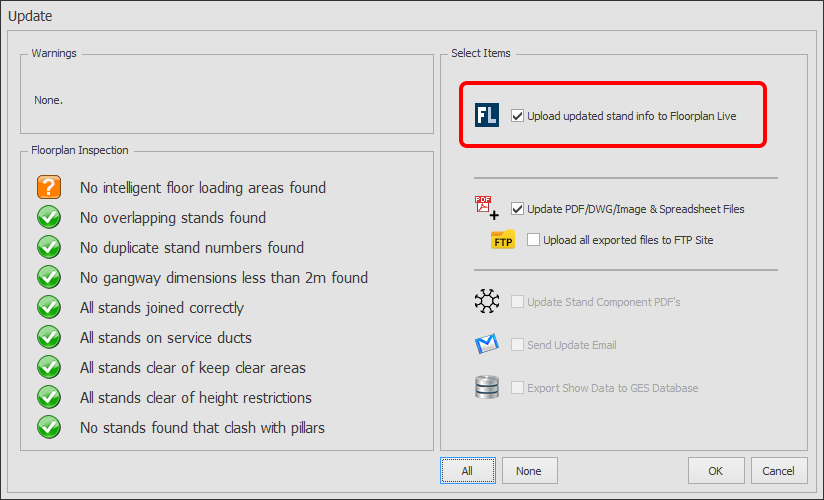
When you close your drawing the following dialog box appears. Make sure 'Upload updated stand info to Floorplan Live' is ticked.
Click OK.
Your Views will now be uploaded and made visible on Floorplan Live.