If you want to send a PDF to someone and not allow them to edit or open it without a password, plus other options, you can do that by adding Security.
Adding / Removing PDF Security
-
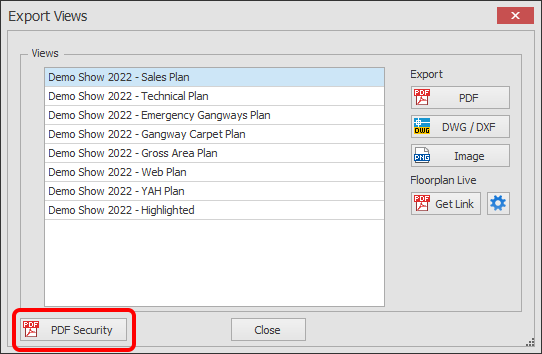
Click on PDF Security button which is located on either the Manage Views or Export Views dialogs. In this example we will use the Export Views dialog.
NOTE: Adding/removing PDF Security applies to all PDFs.
-
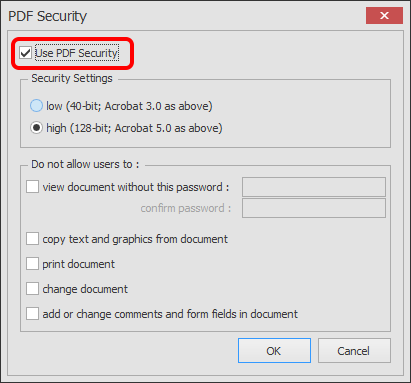
The below PDF Security dialog will now appear.
To enable / disable security, tick / untick the 'Use PDF Security' button.
When ticked you have a few different options to choose from, set as required and click OK.
You can now export your PDFs and security will be applied.
IMPORTANT: If you are sending the PDF to a publishing house to create a show guide etc, it is recommended that security is disabled otherwise they may not be able to open it in the software they use.