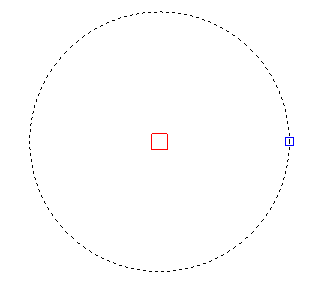
Draw A Circle
The Draw A Circle function allows you to draw a circle on the floorplan that is not a stand.
Draw A Circle
-
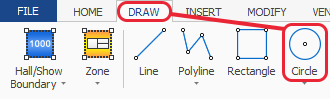
Click the 'Draw Circle' button which is located on the DRAW ribbon.
-
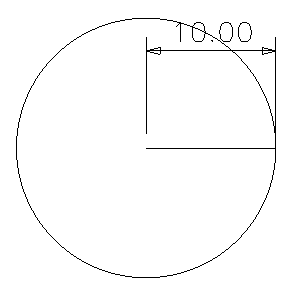
Move the cursor to where you want the centre of the circle to be, click on that point then move your mouse outwards to start drawing the circle. A line shows the radius of the circle as it's drawn, this can be X-Y coordinates (press F8 to select that) or Snap (press F7 to select that).
-
Click with your mouse again when the circle is the correct size to finish drawing it. The circle will have a red node when selected so you can move it but the size is not adjustable once it is drawn.