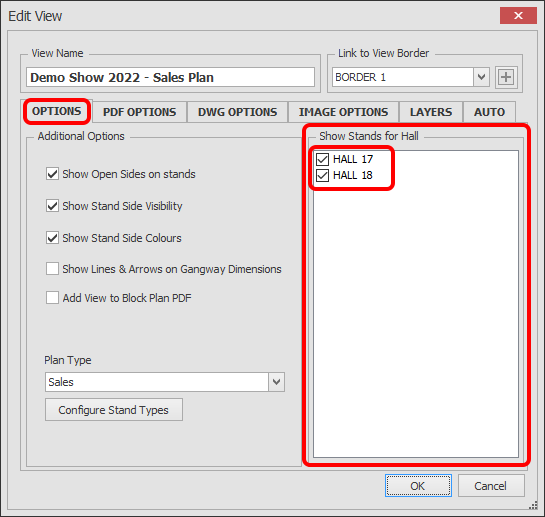
Show / Hide Stands for Halls
Use this function to show / hide Stands per View that are in different Halls.
For example, if you have a multi-hall show and you have created a View for each Hall, you can hide the stands on the other halls so they cannot be seen.
NOTE: This function is only relevant and usable if you have created Gross Areas / Hall Boundaries.
-
Click on the 'Manage Views' button which is located on the HOME menu ribbon.

-
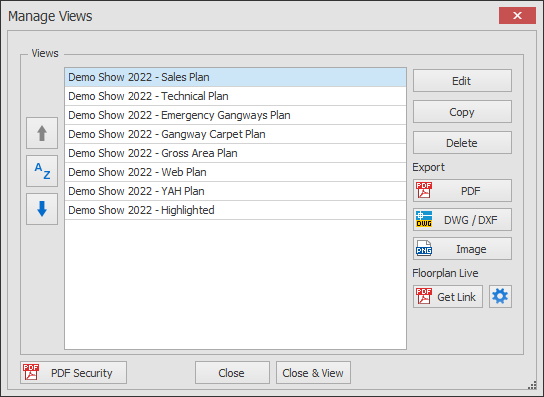
The Manage Views dialog box will now appear showing your list of views.
Select the View you want to edit and click the Edit button.
-
The Edit View dialog will now appear.
Tick / Untick the Hall that you would like the Stands to be shown / hidden for this View.