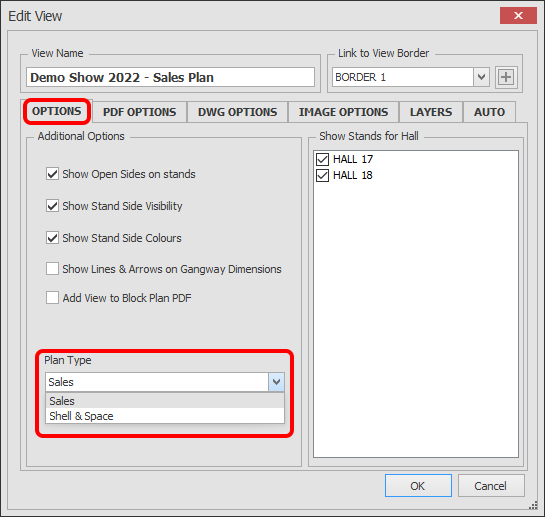
Select Plan Type
After setting up your Plan and Stand Types, you can link a Plan Type to your View.
For example, you can link your Sales Plan Type to the Sales Plan View so the colours for Sales are shown.
-
Click on the 'Manage Views' button which is located on the HOME menu ribbon.

-
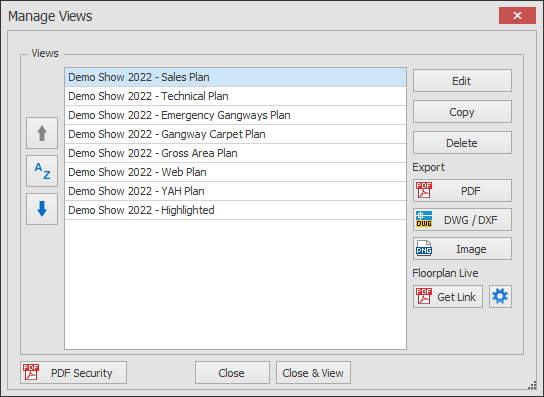
The Manage Views dialog box will now appear showing your list of views.
Select the View you want to edit and click the Edit button.
-
The Edit View dialog will now appear.
Select the 'Plan Type' you would like to link to thie View. Now when you load this View, the colours for the Plan Type selected will be shown.
TIP: For more flexibility, you can also configure individual Stand Type colours.