Views - Show / Hide Stand Line Visibility

Show / Hide Stand Line Visibility

Use this function to Show / Hide stand line visibility for a particular View.

NOTE: This function is irrelevant if you have not changed the visibility of stand lines first. For help doing that, see Toggle Stand Line Visibility.

Below are examples of stands with and without stand line visibility. Stands with visibilty applied are not visible.
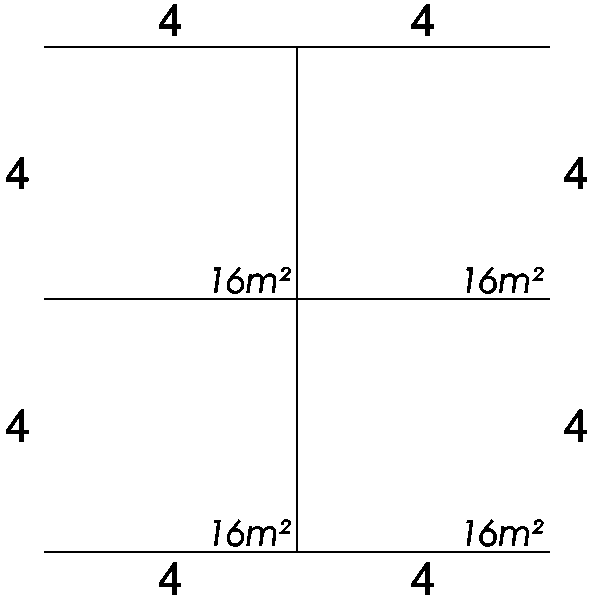
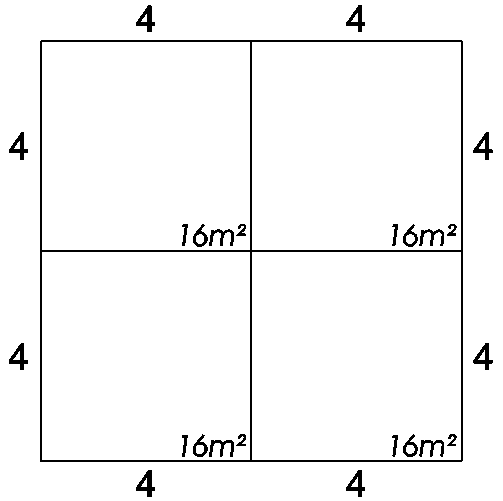
Screenshot: Below are examples of stands with and without stand line visibility. Stands with visibilty
  1. Click on the 'Manage Views' button which is located on the HOME menu ribbon.

    Screenshot: Click on the 'Manage Views' button which is located on the HOME menu ribbon.
  2. The Manage Views dialog box will now appear showing your list of views.

    Select the View you want to edit and click the Edit button.
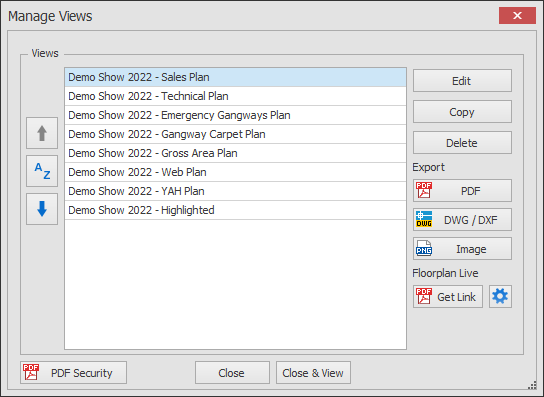
    Screenshot: Select the View you want to edit and click the Edit button.
  3. The Edit View dialog will now appear.

    Tick or Untick the 'Show Stand Side Visibility' option.
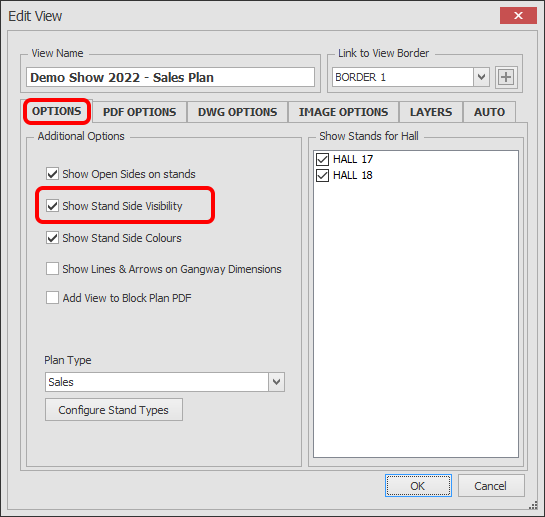
    Screenshot: Tick or Untick the 'Show Stand Side Visibility' option.

Related articles

Views - Show / Hide Open SidesViews - Show / Hide Stand Line ColoursViews - Show / Hide Gangway ArrowsViews - Add View to Block Plan PDFViews - Select Plan TypeViews - Configure Stand Types