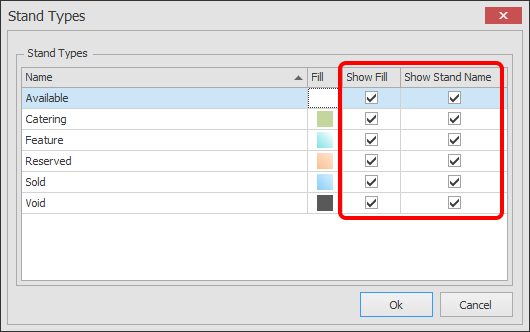
Configure Stand Types
Use this function to show / hide particular stand colours or names from your View.
-
Click on the 'Manage Views' button which is located on the HOME menu ribbon.

-
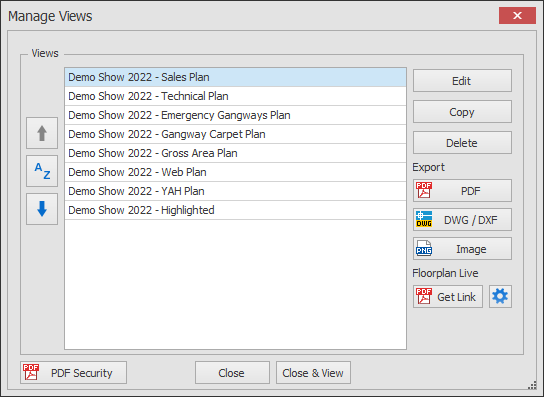
The Manage Views dialog box will now appear showing your list of views.
Select the View you want to edit and click the Edit button.
-
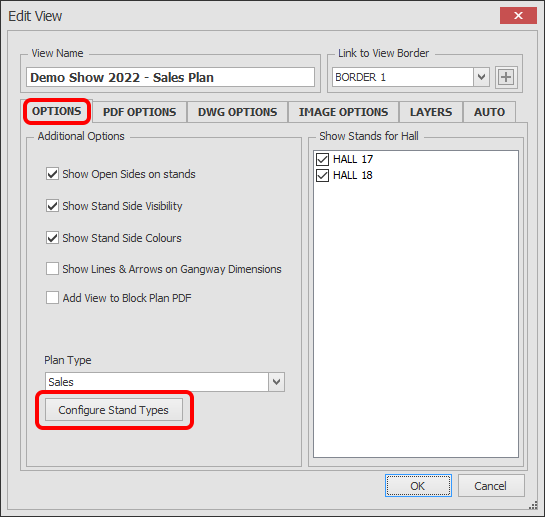
The Edit View dialog will now appear.
Click the 'Configure Stand Types' button as shown below.
-
The Stand Types dialog will now appear.
Tick / Untick the Colours and / or Names that you would like shown / hidden from your View.
For example, you could hide the colours and names of all Stand Types apart from Features.
NOTE: If you have a Stand Type Key inserted on your plan, any types that you have hidden the colour fill from here will also hide the entry on the Key.
NOTE: You cannot edit the names or colours of Stand Types in this box, if you need to do that, see Create Plan Types and Stand Types.