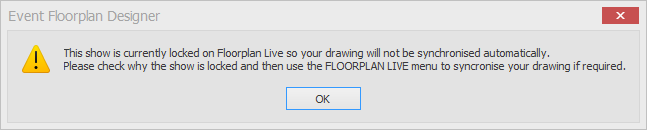
If you see this message when you open your drawing, the show is locked on Floorplan Live, so nobody can edit it online:
"This show is currently locked on Floorplan Live so your drawing will not be synchronised automatically. Please check why the show is locked and then use the FLOORPLAN LIVE menu to syncronise your drawing if required."
Why this happens
The plan was uploaded to Floorplan Live manually, or the drawing was last closed without uploading back to Floorplan Live.
How to unlock it
Make sure nobody else has the drawing open.
Open the drawing and click OK on the message.
Close the drawing and click Yes to save.
In the box that appears, tick 'Upload updated stand info to Floorplan Live' and click OK.
The show unlocks once the upload has finished.
If the tickbox is greyed out
If you can't tick 'Upload updated stand info to Floorplan Live', the box will show this message: 'Cannot upload to Floorplan Live because some stands are not within a Gross Area'. Floorplan Live can only show stands that sit inside a Gross Area.
Click Cancel.
Click Inspect Floorplan on the HOME ribbon.
Click Show next to 'Stands found that are not within a Gross Area'. The stands will be highlighted in red.
Edit the Gross Area so those stands are inside it. See Edit the Shape or Size of a Hall Boundary/Gross Area. Areas that really sit outside the hall, such as catering or features, can be drawn as Zones instead (see Draw a Zone).
Click Refresh, then close the drawing and upload again.
Other reasons a plan may be locked
The drawing is open on someone else's computer, or EFD crashed. EFD will tell you the file is in use. Follow File in Use. Don't click Yes on that message to work on the plan: it opens a copy, not the master drawing, and the copy won't upload to Floorplan Live (see "This is not the master plan").
The show's expiry date on Floorplan Live has passed. Please contact Richard Gnyla at Floorplan Live (richard@eventex.co.uk) to check or extend the expiry date.