Edit Stand Number Position
This function allows you to move a Stand Number to a new position with your mouse.
If you want to set the position for multiple Stand Numbers, click here.
If you want to set the default positions of all Stand Numbers, click here.
-
Select the stand which has the Number you would like to move.
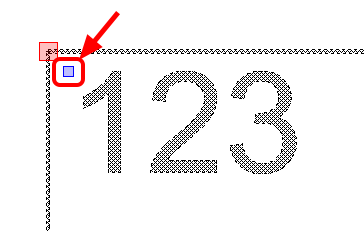
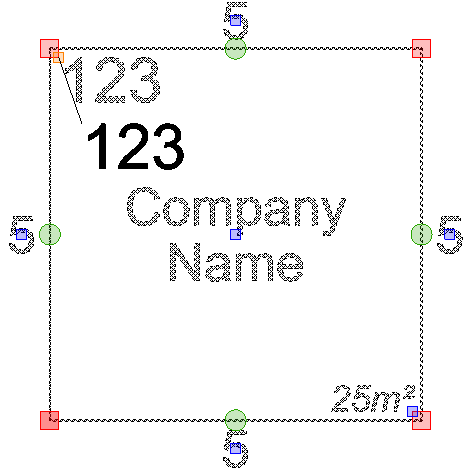
Click on the Blue node which is attached to the Number Text; in the example below it is in the top left of the text. If there are 2 nodes close to each other, zoom in to make the selection easier for yourself.
Now move your mouse to position the text accordingly, then click.
TIP: If your text is moving freely but you want to keep the text straight and inline, press and hold the SHIFT key on your keyboard or enable Angle Lock by pressing F6 on your keyboard.