This method of adding stand numbers allows you to number your whole floorplan quickly and accurately in increments specified by you.
If you want to number your plan even more quickly, use the Quick Add Numbers function.
Adding Multiple Stand Numbers - Add Numbers
This method will allow you to add Stand Numbers to many stands very quickly.
-
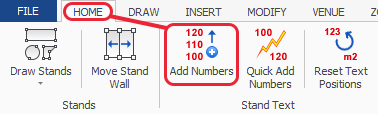
Select the 'Add Numbers' button which is located on the HOME ribbon.
-
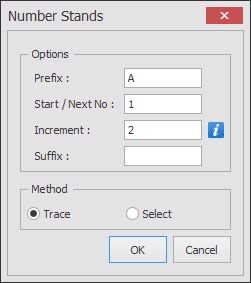
The following dialog box will now appear for you to specify the numbering system you require.
Options:
Prefix - You can add a letter or a number in this field which will remain fixed until you change it.
Start / Next Number - This is the number you want to start at.
Increment - This is the increment the numbers will increase by each time you click on a stand
Suffix - You can add a letter or a number in this field which will remain fixed until you change it.
The settings shown will give you a start number of A1 and then each time you click on a stand (see step 3) the numbers will increment by 2 giving you A3, A5, A7 etc.
Method:
Trace - See Step 3a below.
Select - See Step 3b below.
3a
Trace Method - This method allows you number a whole row of stands with just 2 clicks.
With the Trace Method selected click OK to the above dialog box. Now click on the first stand you want the numbers to start from, then move your mouse and you will see a line appear, now click on the last stand in the row/column you want numbered and click. All of the stands that were touching the line will now be numbered (see picture below).

3b
Select Method - This method is more flexible but you need to click on each stand to add numbers.
With the Select Method selected click OK to the above dialog box, you then need to click on each stand that needs to be numbered.
Things to note:
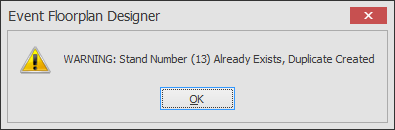
- If a number(s) is duplicated, the below message will appear telling you that the number already exists, just click OK and then either carry on numbering your plan or press the 'Esc' (Escape) key on your keyboard to cancel and re-evaluate your numbering sequence. You can check for duplicated stand numbers after numbering your plan with the Inspect Floorplan function if required. Duplicate numbers are also highlighted in Red on the Stand List.
Tips:
- If you make a mistake and click on a stand twice or more while using the Select Method, you can press and hold the CTRL key while clicking on the same stand to Decrement the number.
- If you want to change the Numbering settings again just click on the Add Numbers button again to change them.
- If you have numbered the whole floorplan and realised that you need to add or change a Prefix or Suffix for many stands, you can use the change Prefix/Suffix function.
- If you have numbered the whole floorplan and realised that they are completely wrong, you can remove all of the stand numbers using the Clear Properties function.