Delete a Border
View the quick tutorial video (no sound) and/or follow the instructions below.
-
Select the relevant border by clicking on the border itself or its name in the bottom left.
If you cannot select the Border, please see point 3 on our troubleshooting page.
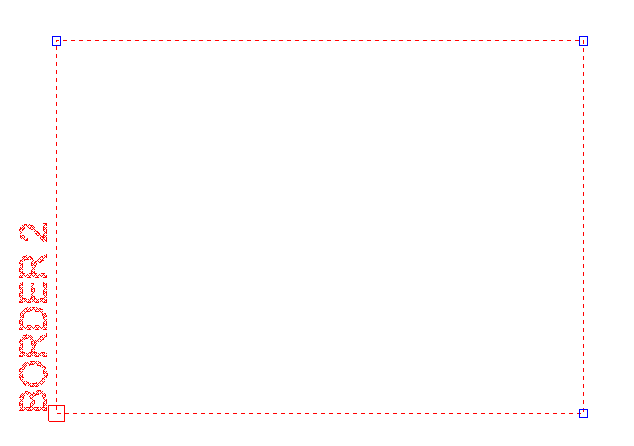
-
Once the Border is selected, press DEL on your keyboard or go to MODIFY > Delete as shown below.
