PDF - Include Layers
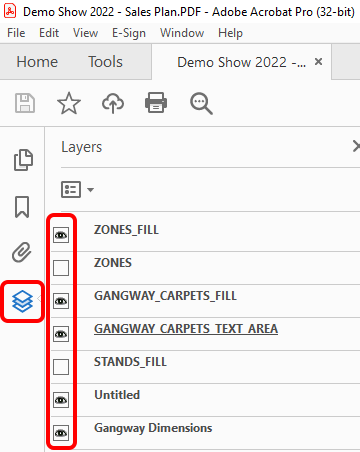
Use this function to allow any person that is viewing the PDF in Adobe Reader/Acrobat to turn off available layers, see example below.
-
Click on the 'Manage Views' button which is located on the HOME menu ribbon.

-
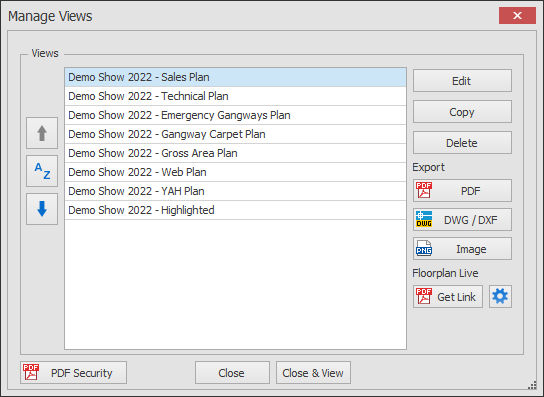
The Manage Views dialog box will now appear showing your list of views.
Select the View you want to edit and click the Edit button. (Multi-view editing is not available for this function).
-
The Edit View dialog will now appear.
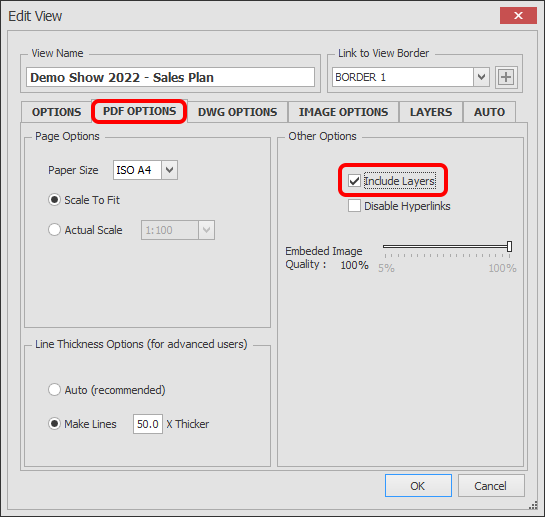
Click on the PDF OPTIONS tab to access the Other Options as shown below.
To make layers visible in the exported PDF, tick the 'Include Layers' option as highlighted below.
IMPORTANT NOTES:
- Even if 'Include Layers' is enabled, the PDF will only show the layers which are visible / Printable as per the LAYERS tab within your View.
- When 'Include Layers' is enabled, the display order of some entities may not be correct due to the fact the display order in a PDF is somewhat determined by the layer order. If you are having problems with the display order of some entities, disable 'Include Layers'.