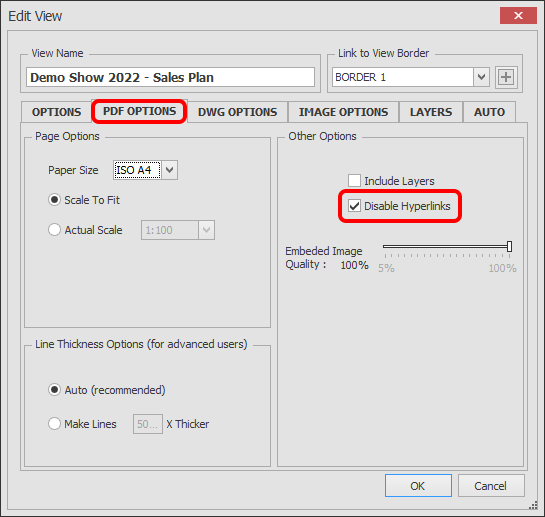
PDF - Disable Hyperlinks
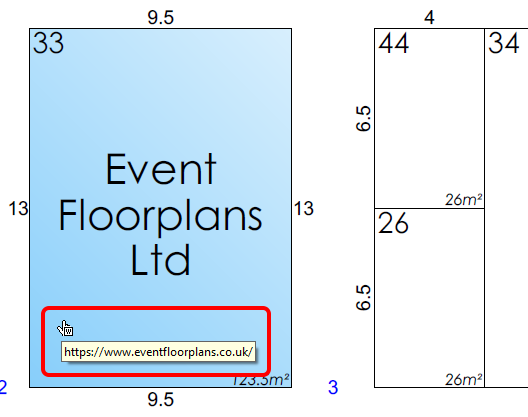
As a default, hyperlinks that have been added to your drawing are clickable on exported PDFs (see example below), use this function to disable them.
-
Click on the 'Manage Views' button which is located on the HOME menu ribbon.

-
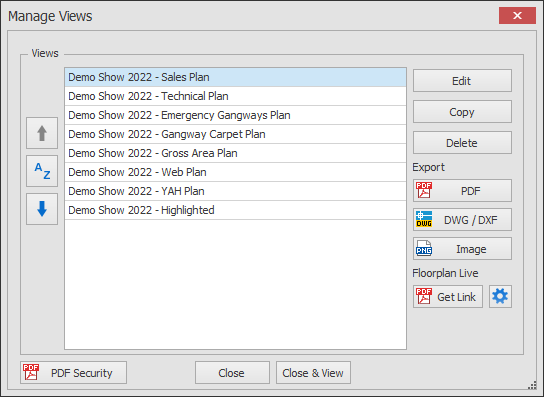
The Manage Views dialog box will now appear showing your list of views.
Select the View you want to edit and click the Edit button. (Multi-view editing is not available for this function).
-
The Edit View dialog will now appear.
Click on the PDF OPTIONS tab to access the Other Options as shown below.
To disable Hyperlinks in the exported PDF, tick the 'Disable Hyperlinks' option as highlighted below.