Turn on and use Layer Groups
Layer Groups help keep your Layers Organised, making things easier to find and Select.
-
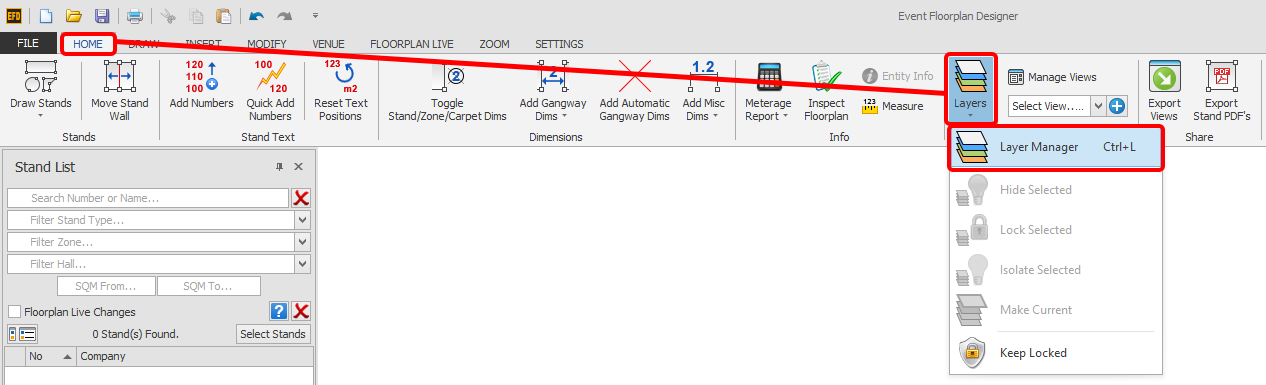
On the HOME menu, click the 'Layers' button and then 'Layer Manager'.
-
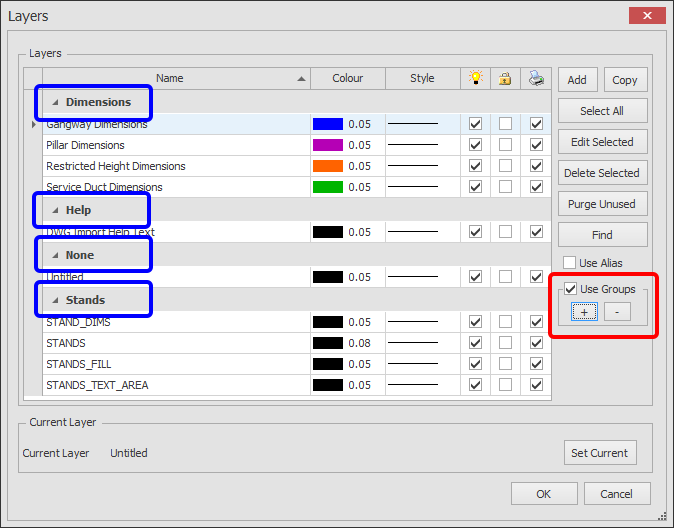
The Layer Manager dialog box will now appear as shown below.
Click the 'Use Groups' tick box as highlighted in Red below. You will then see some Group headers appear already (highlighted in Blue below).
You can expand or collapse the Groups either by clicking the little arrow next to the Group name, or by clicking the + or - buttons underneath the Use Groups tick box.
To add or move Layers to a Group, see Add or Move Layer Groups.
 Add or Move Layer Groups." width="674" height="528" loading="lazy" class="rounded-lg border border-gray-200 shadow-sm max-w-full h-auto cursor-zoom-in">