-
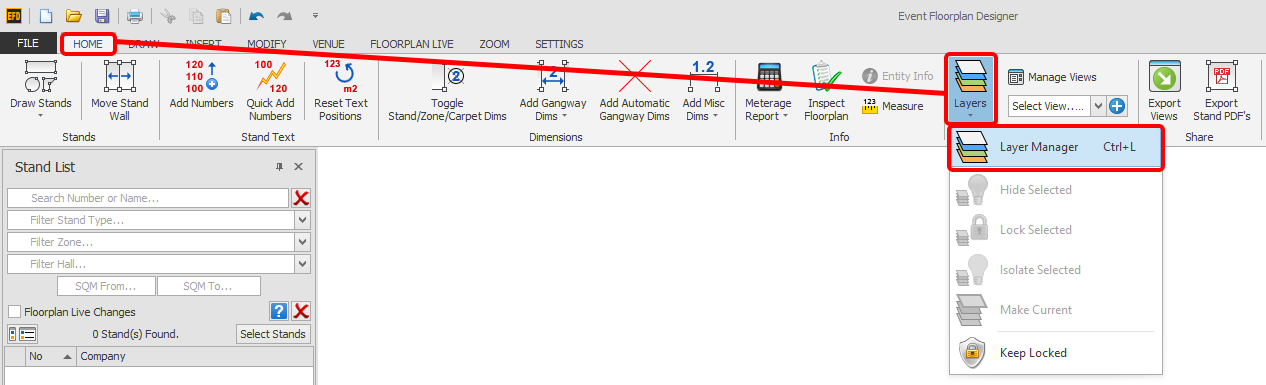
On the HOME menu, click the 'Layers' button and then 'Layer Manager'.
-
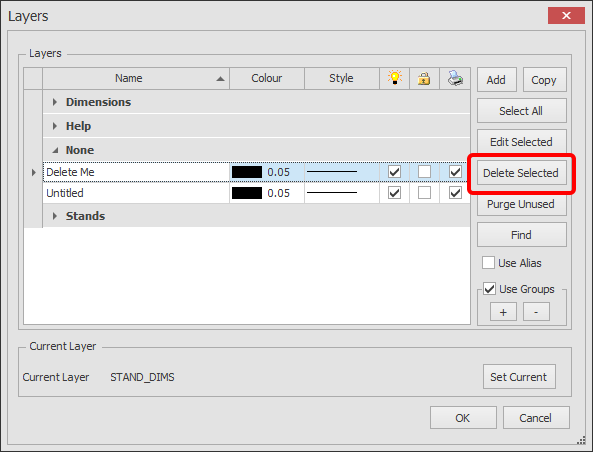
The Layer Manager dialog box will now appear as shown below.
Find the layer you would like to Delete and select it.
If you would like to Delete multiple layers at the same time, select the layer Names while pressing and holding the CTRL key on your keyboard.
Now press the Delete Selected button as shown below. The layer will now be deleted, or if you get a message saying you cannot delete the layer, go to Step 3.
-
You may get one of these message while trying to delete a layer:
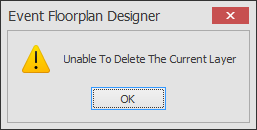
If you get this message, go to Step 4.
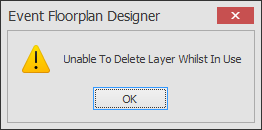
If you get this message, got o Step 5.
-
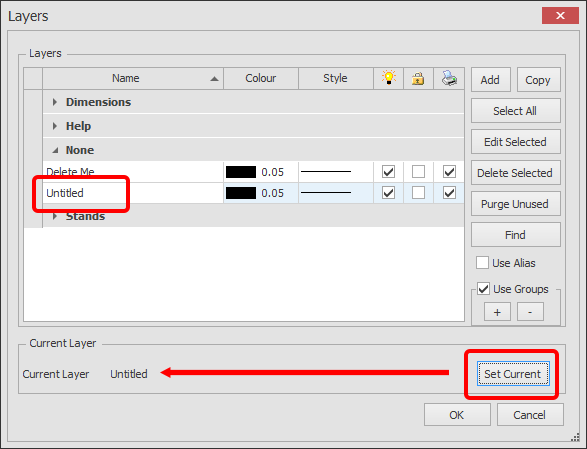
If you get the 'Unable To Delete The Current Layer' message, you will need to make another layer the current layer first.
To do this, select any other layer and click the Set Current button as highlighted below. Now repeat the steps above to delete the layer.
-
If you get the 'Unable To Delete Layer Whilst In Use' message, you will need to delete or move the entities that are on this layer first.
Once you have removed the entities that are on this layer, repeat the steps above.
If you are having trouble finding entities on the layer you want to delete, see Find Entities on Layers.