You can rotate the text on a Stand: the Stand number, Company Name, area or dimensions.
Select the Stand, or several Stands. The Stand editing options appear in the ribbon at the top of the screen.
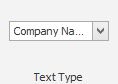
In Text Type, choose the text you want to rotate: Number, Company Name, Area or Dimensions.
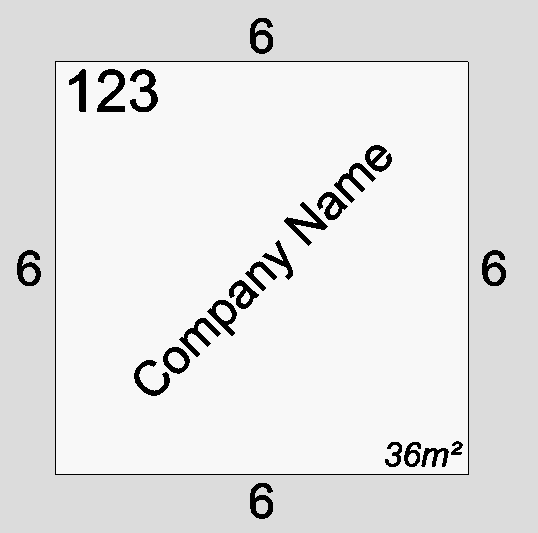
In Rotation, type the angle you want, for example 45, and press Enter.

The text rotates to the new angle.
NOTE: When you apply a new rotation, the Text Type box switches to a different text type. If you want to keep rotating the same text, choose it again in Text Type before you enter the next angle.