Isolating layers hides all layers apart from the one that the selected entity is on. For example, if I select a Gangway dimension and use this function, only the Gangway dimensions layer will remain visible on-screen.
Isolating Selected Layers
-
Select an entity(s) that is on the layer you would like to Isolate (keep visible).
TIP: You can select multiple entities that are on different layers at the same time.
-
On the HOME menu, click the 'Layers' button and then 'Isolate Selected'.
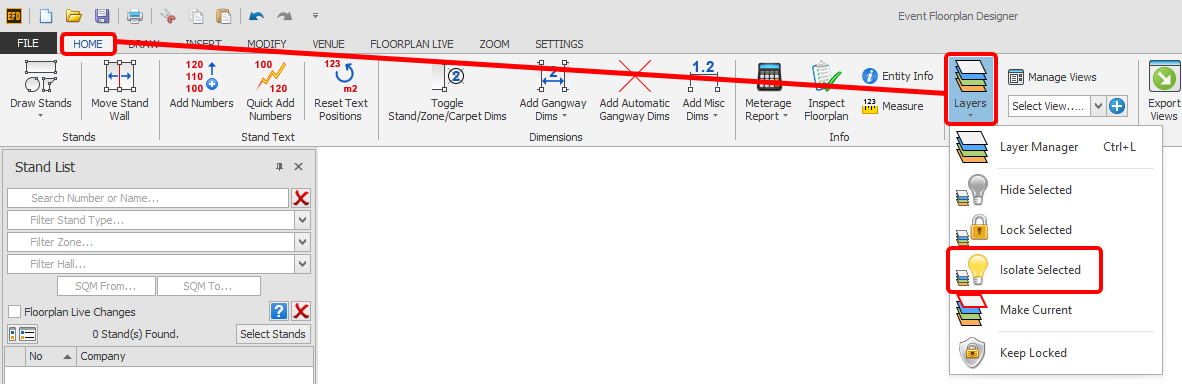
-
The layer(s) that the entity(s) was on is now the only one visible on-screen.
TIP: If you make a mistake and isolate a layer you did not intend to, you will have to go into the main Layers function to switch the layer(s) back on, UNDO on this function does not work.