Test Connection to Floorplan Live
This function tests the connection between your computer/floorplan and Floorplan Live to make sure that you are ready to upload/download successfully.
Test the Connection to Floorplan Live
-
IMPORTANT! Download and open this EFD file - EFD Connection Test File
When you open the above file there will be some instructions onscreen on how to run the test, but you can also follow the below.
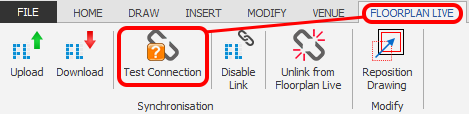
Click the 'Test Connection' button which is located on the FLOORPLAN LIVE ribbon.
-
The system will now run a series of tests and display a message box showing either ✅ Passed or ❌ Failed.
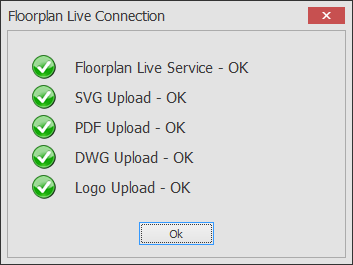
Floorplan Live Service
This service uploads and downloads updated stand data.
✅ A green tick means the service is working.
❌ A red cross means your computer or network can’t reach the service.
If you see a ❌:
- Open this link: https://efd-floorplanlive-sync.floorplanlive.online/If you see "Server Error – 403 Forbidden: Access is denied", that’s normal — it means the connection is fine.
- If the page doesn’t load, ask your IT department to make sure your network can access the link.
SVG, PDF, DWG, and Logo Uploads
These files are uploaded using FTP (File Transfer Protocol).
✅ Green tick: Your files are uploading successfully.
❌ Red cross: Your local network or firewall is blocking the upload. (See the fix below).
Information for your IT Department
If you are seeing a red cross, please share these exact firewall requirements with your network administrator so they can unblock your access:
- Destination: ftp://resources-ftp.floorplanlive.online
- Protocol: Passive FTP (PASV) for outbound connections
- Command Port: Allow initial connection on Port 21
- Data Ports: Dynamically allow outbound traffic on Ports 5000–6000
- Troubleshooting Note (IPv6): If your network uses IPv4, NAT (Network Address Translation) can sometimes interfere with Passive FTP data ports. Connecting via IPv6 bypasses NAT entirely and often resolves these connection drops automatically.