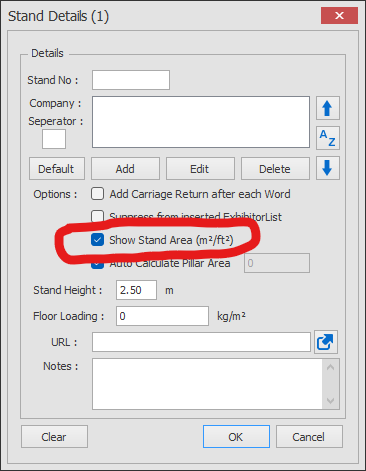
Show / Hide Stand Square Meterage
Why would you want to hide the stand SQMs? You may have very small stands where space is limited, leaving little space for the stand number and stand name. You may just want the stands to look clean and neat for a catalog plan for example.
There are 2 ways of hiding the stand square meterage (SQMs), each has it's own pros and cons.
- Use Layers to show/hide all stand SQMs - This shows/hides SQMs for all stands and can be shown/hidden per View
- Hide SQMs for individual stands - This can be useful when needing to hide the SQM for just a small selection of stands in a pavilion for example, but you cannot show/hide them per View.
Instructions for using both options are listed below.
Option 1 - Show / Hide SQMs for all stands by using Layers
-
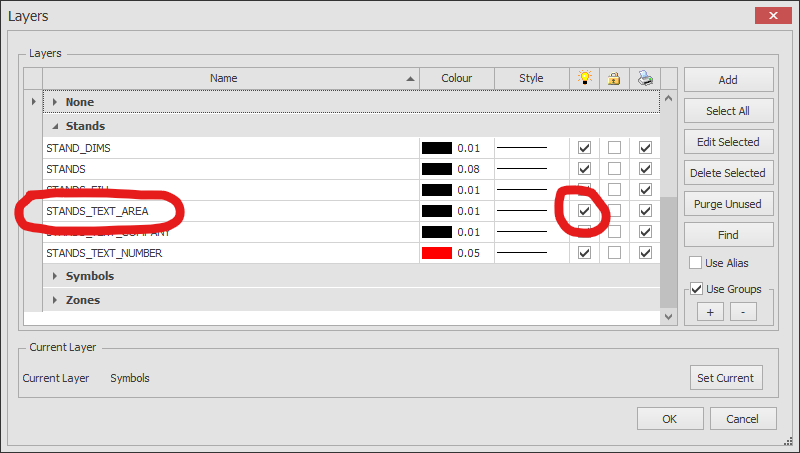
Click the 'Layers' button which is located on the HOME ribbon.

-
The Layers Manager will now appear as shown below. Search for the layer called STANDS_TEXT_AREA and either tick the light bulb column to make them visible, or untick the light bulb column to hide them.
NOTE: If you want to hide the SQMs in any of your Views, you must edit the layers for the Views using the View Manager. For help, see Views - Layers.
Option 2 - Show / Hide SQMs for individual stands
-
Double click on a stand who's SQM you want to show / hide, the following Stand Edit dialog will appear.
Now tick or untick the 'Show Stand Area' to hide / show the SQM for this individual stand.