Printing your Floorplan
Although there is a built in Print function in EFD, the best way to print your floorplan is to export a View to a PDF first and then print the PDF.
The reason for this is because you have much more control of what is shown on your PDF compared to the built in print function.
Printing PDFs
NOTE: Adobe Reader is required to open and print PDFs which can be downloaded form here - https://get.adobe.com/uk/reader/
-
Export your View(s) to PDF first by following these instructions.
-
If you want to print a PDF so it fits your page go to Step 3.
If you want to print a PDF that is to-scale, i.e. 1:200, go to Step 4.
-
Printing a PDF that fits your page:
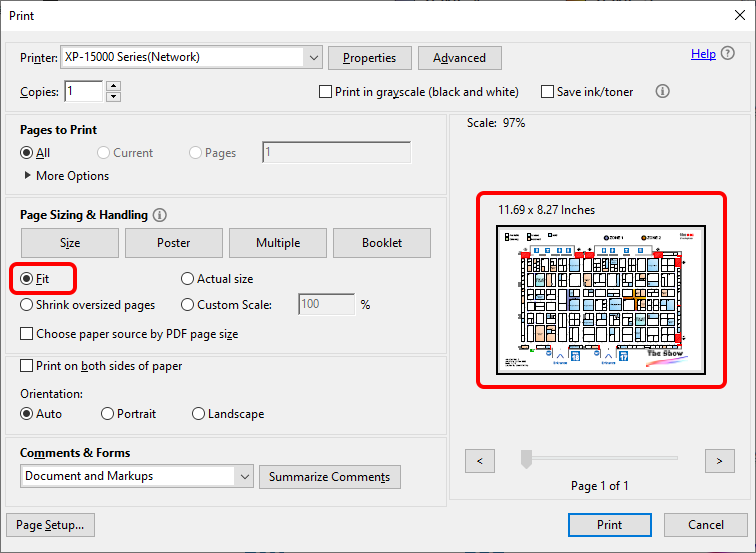
Open the PDF and go to File > Print or press CTRL + P, the below print dialog will appear.
- Select your printer and select the paper size required.
- The important part here is to make sure 'Fit' is selected so the PDF fills the page, then check the Preview to make sure it looks correct.
- Click Print.
-
Printing a PDF that is to-scale:
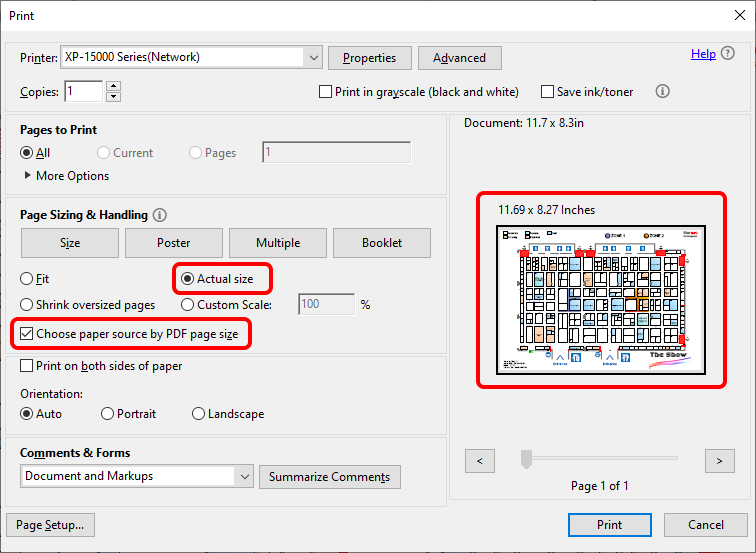
Open the PDF and go to File > Print or press CTRL + P, the below print dialog will appear.
- Select your printer and select the paper size required. Alternatively you can select 'Choose paper source by PDF page size' instead of selecting a page size.
- The important part here is to make sure 'Actual size' is selected so the PDF is printed based on the scale you set it to, then check the Preview to make sure it looks correct.
- Click Print.
- Once printed you can check it has printed to-scale by measuring something on the plan with a scale rule.