Delete a Logo
View the quick tutorial video (no sound) and/or follow the instructions below.
-
Select the logo you would like to delete.
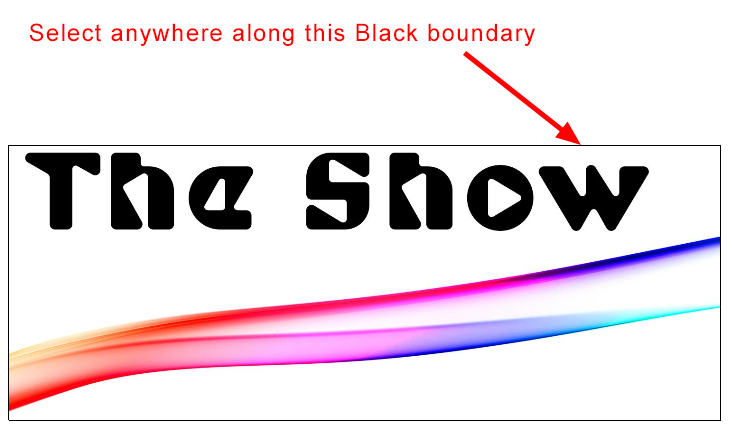
Make sure you select the boundary of the logo because this is the only way to select it, see image below.
If you cannot select the boundary, please see point 3 on our troubleshooting page.
-
Once the logo is selected, press DEL on your keyboard or go to MODIFY > Delete as shown below.
